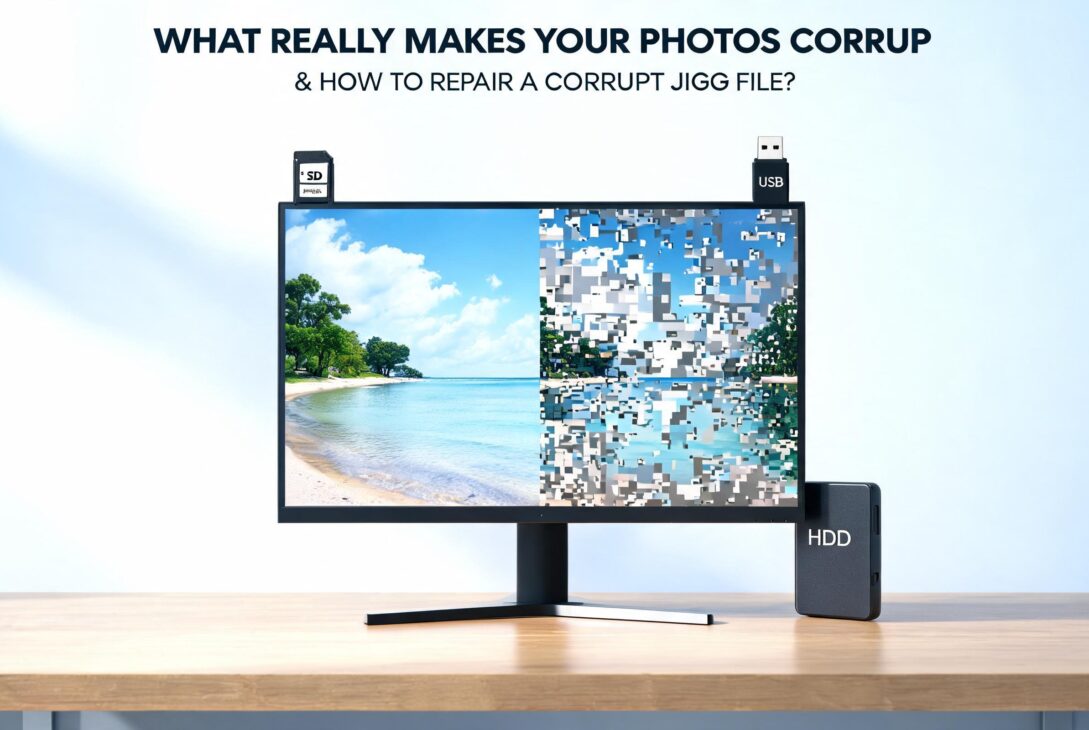
JPEG corruption causes, symptoms, repair methods, CHKDSK, backup, Stellar Repair for Photo, prevention tips, devices prone to corruption”,”topn”:5,”source”:”web”}## What Really Makes Your Photos Corrupt and How to Repair a Corrupt JPEG File
If you’ve ever tried to open a photo only to see an error, a half-loaded image, or weird colored blocks, you’ve likely met a corrupt JPEG file. It’s frustrating, especially when the picture is important or holds memories. This guide explains in simple terms why JPEG files get corrupted, how to fix them, and how to prevent it from happening again.
Before we dive in, think about this: when your photos got corrupted last time, were they on a memory card, phone storage, or computer drive?
What Is a Corrupt JPEG File?
A corrupt JPEG file is a photo file that has damaged or missing data, so your device or app cannot read it properly. The image might not open at all, or it may open with visual glitches and errors.
JPEG uses compression to reduce file size, which means the image is stored as a mix of image data and small structural information like headers and metadata. When any of these parts get damaged, the file becomes unreadable or displays incorrectly.
Signs Your Photo Is Corrupted
You’ll usually notice one or more of these signs:
- Photo won’t open at all or shows “file cannot be opened”.
- Only half of the image is visible; the rest is black, gray, or distorted.
- Gray areas or solid color bands appear over parts of the photo.
- Pixelated blocks, random colors, or “noise” across the image.
- “Unsupported format” or “invalid image file” error from your viewer or editor.
Have you seen any of these symptoms on your own photos? If yes, which one shows up most often?
How to Repair a Corrupt JPEG File
You should always start with the simplest and safest methods before using advanced tools. Try these methods one by one to repair photos on Windows.
Method 1: Restore From Backup
If you keep your photos in cloud storage or an external backup drive, this is your fastest and safest option.
- Check cloud accounts like Google Photos, iCloud, OneDrive, or Dropbox for an original copy.
- Look for older versions of the same file if your backup service supports version history.
- If you back up to an external HDD or NAS, copy the photo back from there.
Restoring from backup avoids extra damage, because you’re using a clean copy instead of trying to repair a broken one.
Method 2: Open Using Another Photo Viewer
Sometimes the file is slightly damaged and one app fails to read it while another can still open it.
Try these steps:
- On Windows, open the image with:
- Photos app
- Paint
- IrfanView or any third-party viewer.
- On macOS, try:
- Preview
- Photos
- A different editor like GIMP or Photoshop (if available).
If another viewer opens the photo, immediately save it again under a new name (for example, “photo_fixed.jpg”). This can sometimes rebuild the file structure enough to make it stable.
Method 3: Use Windows CHKDSK (Storage Errors)
If multiple photos from the same drive or card are corrupt, the storage device may have errors or bad sectors. On Windows, CHKDSK can scan the drive and fix some file system issues.
Basic steps (non-technical):
- Connect the SD card, USB drive, or external HDD.
- Open “This PC”, right-click the drive, and select “Properties”.
- Go to the “Tools” tab and click “Check” under Error checking.
- Let Windows scan and fix file system errors.
This doesn’t “repair” the JPEG itself but can stop further corruption and sometimes recover file structure so the file becomes readable again.
Method 4: Repair Using Professional JPEG Repair Software (Recommended)
If the above methods don’t work, a dedicated JPEG repair tool gives you the best chance to fix corrupt or damaged photos. One popular option is Stellar Repair for Photo, a professional JPEG repair tool designed for non-technical users.
What a JPEG repair tool like Stellar Repair for Photo can do:
- Repair corrupted JPEG/JPG images that won’t open or show errors.
- Fix distortion, gray areas, broken or pixelated parts of photos.
- Handle multiple corrupt photos at once (batch repair).
- Work with images from cameras, smartphones, SD cards, USB drives, and external disks.
Typical repair flow with Stellar Repair for Photo:
- Install and launch the software on your Windows or Mac computer.
- Add the corrupt JPEG files you want to repair.
- Run the repair process; the tool analyzes and reconstructs the image data.
- Preview repaired photos and save them to a safe location (preferably a different drive).
Because the tool is purpose-built for photo repair, it can fix structural issues in the JPEG file that normal viewers and simple utilities cannot.
Method 5: Recover the Original Photo if Repair Fails
In some cases, the JPEG file is too damaged to repair directly. If the corruption happened due to deletion, formatting, or storage errors, you may be able to recover the original photo from the device using data recovery software.
Key points:
- Stop using the affected drive or memory card immediately to avoid overwriting deleted data.
- Use trusted photo or data recovery software to scan the device for lost JPEG files.
- Recover the found photos to a different drive, not the same one you’re scanning.
Recovery tools don’t “fix” the corrupt file; they look for older, intact versions of the image that still exist on the storage as hidden data.
When you think about your own workflow, which step here do you feel you would try first if a photo becomes unreadable: backup, viewer change, CHKDSK, repair tool, or recovery?
You can also read about Top Digital Marketing Strategies for Service Businesses.
How to Prevent JPEG Corruption
Preventing corruption is easier than fixing it. A few simple habits can greatly lower the risk of damaged photos.
- Always safely eject SD cards and USB drives before removing them.
- Avoid turning off the camera or phone while images are being saved or transferred.
- Don’t remove the card while photos are still being written or viewed.
- Keep drives and cards away from extreme heat, moisture, or physical damage.
- Run regular health checks on HDDs and SSDs and replace failing drives.
- Use reliable card readers and USB cables; avoid very cheap or damaged accessories.
- Maintain at least one backup copy of important photos in the cloud or on another device.
Following these habits turns photo storage into a safer, more predictable process instead of a risky one.
Which Devices Are Most Likely to Cause JPEG Corruption?
Certain devices and storage media are more prone to corruption because of how people use them and their physical limits. Here’s a simple overview:
- DSLR cameras: Frequent card removal, rapid shooting, power loss during write.
- Mirrorless cameras: Similar to DSLRs; heavy use of SD cards and high speed bursts.
- Smartphones: App crashes, low storage, sudden restarts, interrupted transfers.
- SD cards: Wear and tear, cheap or fake cards, improper ejection, bad sectors.
- USB drives: Frequent plugging/unplugging, unsafe removal, physical damage.
Portable media like SD cards and USB drives tend to fail more often because they’re moved around, unplugged frequently, and sometimes bought in low quality.
Thinking about your own devices, which one do you use most for storing photos, and how could you reduce corruption risk on that device?
Frequently Asked Questions
Can I fully fix a badly corrupted JPEG?
Sometimes yes, sometimes no. If the core image data is still present, a JPEG repair tool can often fix it. But if parts of the file are completely overwritten or missing, full repair may not be possible, and recovery of an older copy is the better option.
Is it safe to use a JPEG repair tool?
Reputable tools like Stellar Repair for Photo are designed to work on copies of your files and save repaired images separately, which is safer. You should still back up your photos before any repair attempt.
Will converting the JPEG to another format (like PNG) fix it?
Simply converting a corrupt JPEG to another format usually does not fix underlying corruption. First repair or recover the image, then export copies to other formats if needed.
Final Thoughts
Corrupt JPEG files can feel like a disaster, especially when the photos are personal or work-related, but in many cases, they’re repairable or recoverable with the right steps. Start with backups and simple checks, then move to tools like CHKDSK and dedicated JPEG repair tools such as Stellar Repair for Photo when needed.